
Sonic Leads ISales integration
Instructions
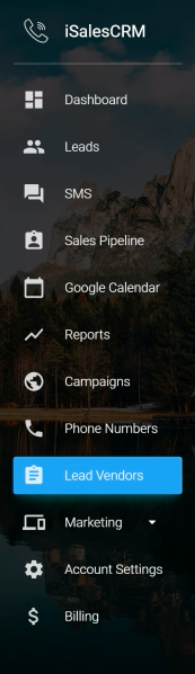
- Open your ISalesCRM account. On the left-hand menu pane select Lead Vendors.
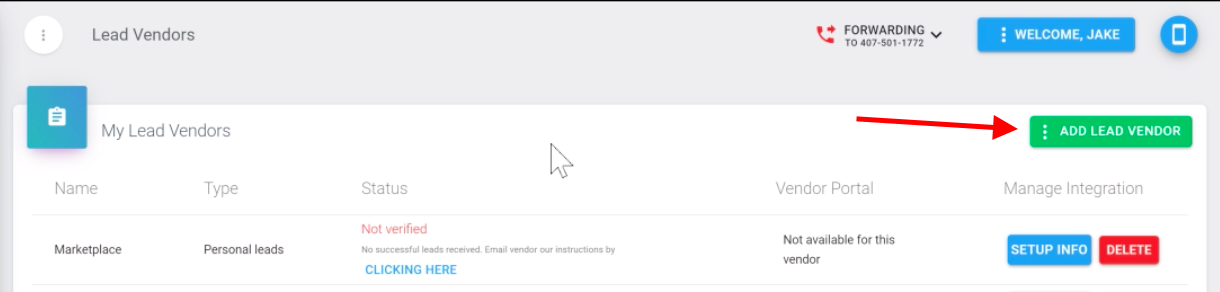
- Select Add Lead Vendor.
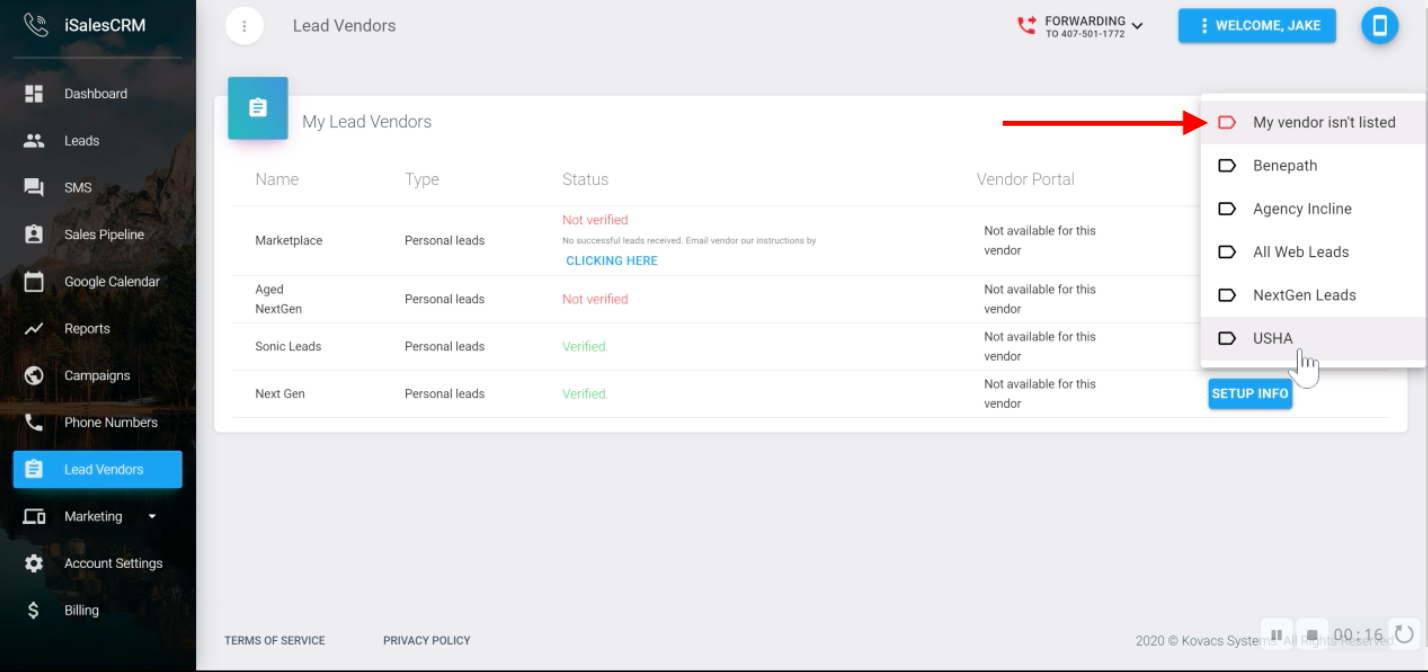
- Check My vendor isn't listed.
NOTE: USHA is not the marketplace. It is for internal home office use.
- In the Lead vendor name field, type in Marketplace Aged Leads.
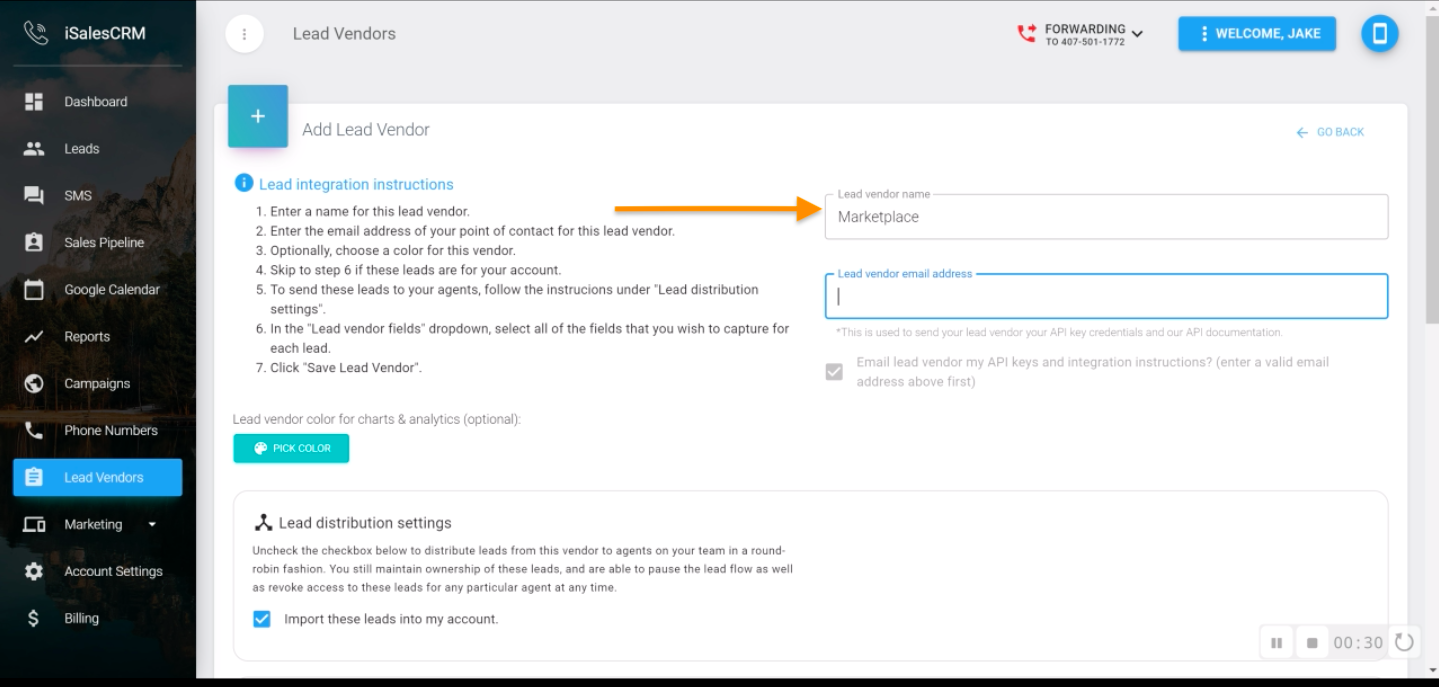
- In the Lead vendor email address field, type in support@ushamarketplace.com.
NOTE: This email address is required. Leave the remaining options selected.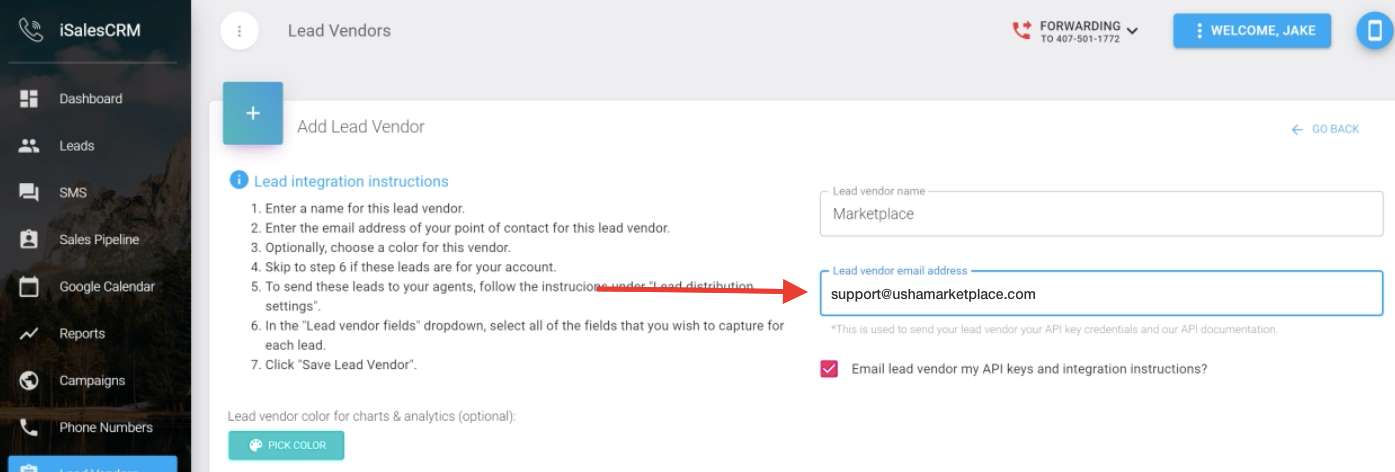
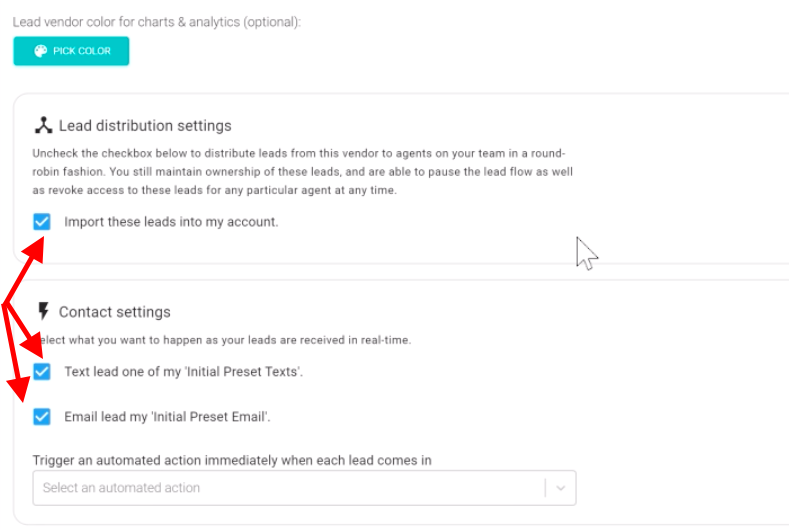
- Select ALL options in the lead vendor fields list in the order listed below
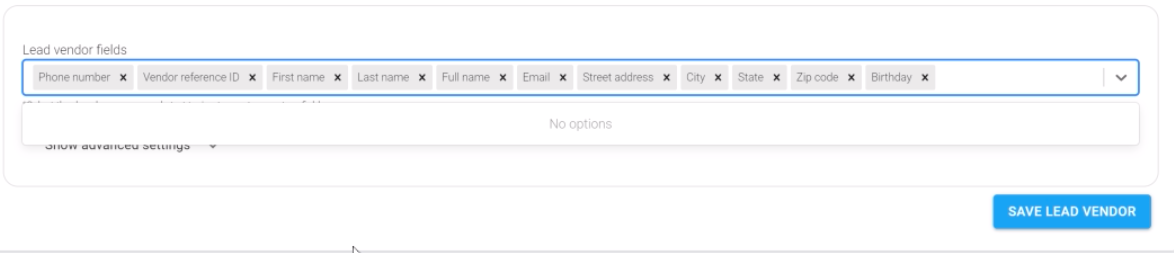
- Click SAVE LEAD VENDOR
- A confirmation email will be sent to the email that you use to log into ISalesCRM.
- If you receive a rejection email, then either you choose the wrong vendor from step 6 or you did not complete steps 1 through 4 correctly.
- You can view your new destination by refreshing your browser and going to My Destinations when creating or editing a campaign.
